Overview of IPEX-LLM Containers for Intel GPU#
An IPEX-LLM container is a pre-configured environment that includes all necessary dependencies for running LLMs on Intel GPUs.
This guide provides general instructions for setting up the IPEX-LLM Docker containers with Intel GPU. It begins with instructions and tips for Docker installation, and then introduce the available IPEX-LLM containers and their uses.
Install Docker#
Linux#
Follow the instructions in the Offcial Docker Guide to install Docker on Linux.
Windows#
Tip
The installation requires at least 35GB of free disk space on C drive.
Note
Detailed installation instructions for Windows, including steps for enabling WSL2, can be found on the [Docker Desktop for Windows installation page](https://docs.docker.com/desktop/install/windows-install/).
Install Docker Desktop for Windows#
Follow the instructions in this guide to install Docker Desktop for Windows. Restart you machine after the installation is complete.
Install WSL2#
Follow the instructions in this guide to install Windows Subsystem for Linux 2 (WSL2).
Tip
You may verify WSL2 installation by running the command wsl –list in PowerShell or Command Prompt. If WSL2 is installed, you will see a list of installed Linux distributions.
Enable Docker integration with WSL2#
Open Docker desktop, and select Settings->Resources->WSL integration->turn on Ubuntu button->Apply & restart.
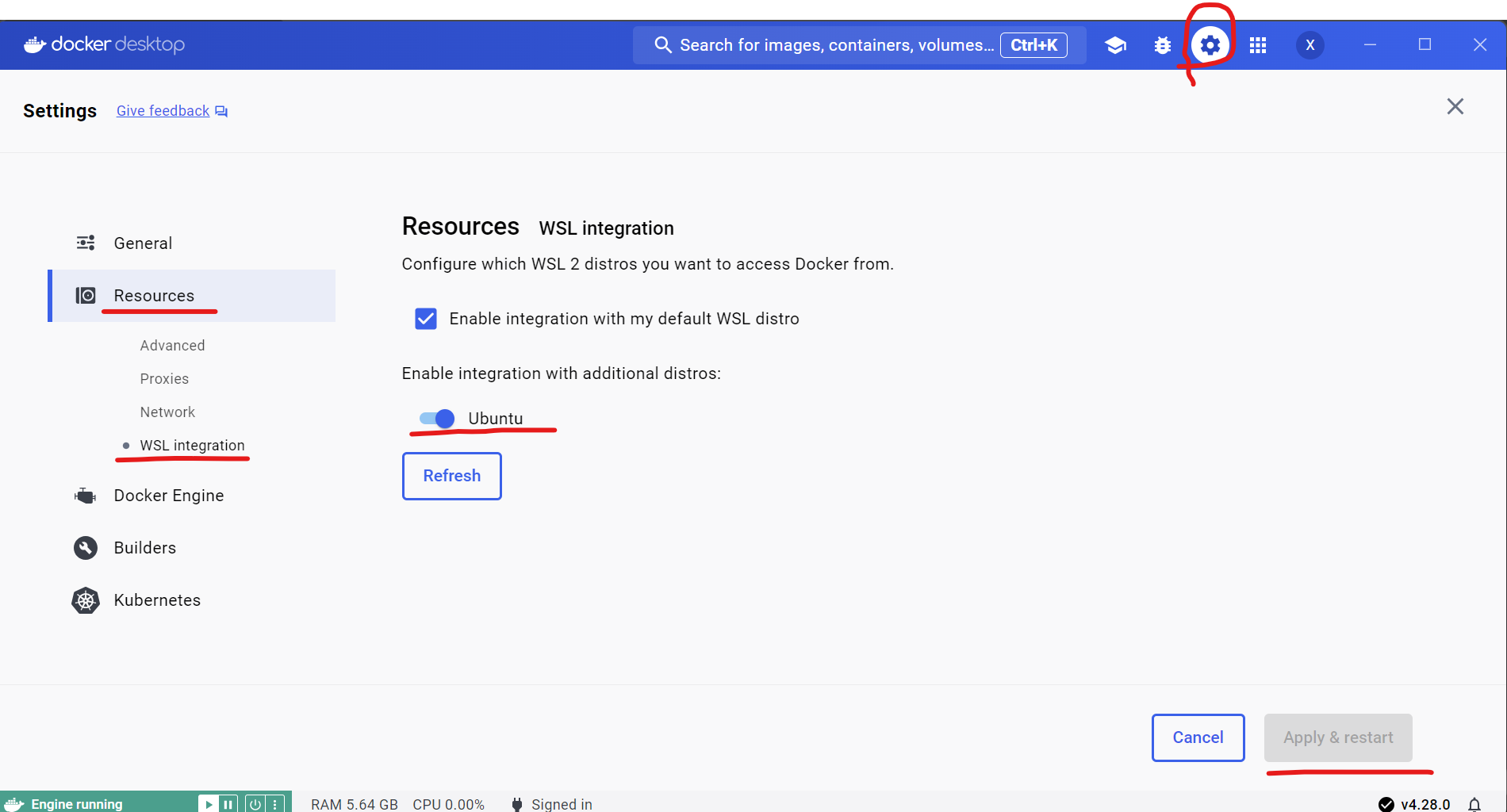
Tip
If you encounter Docker Engine stopped when opening Docker Desktop, you can reopen it in administrator mode.
Verify Docker is enabled in WSL2#
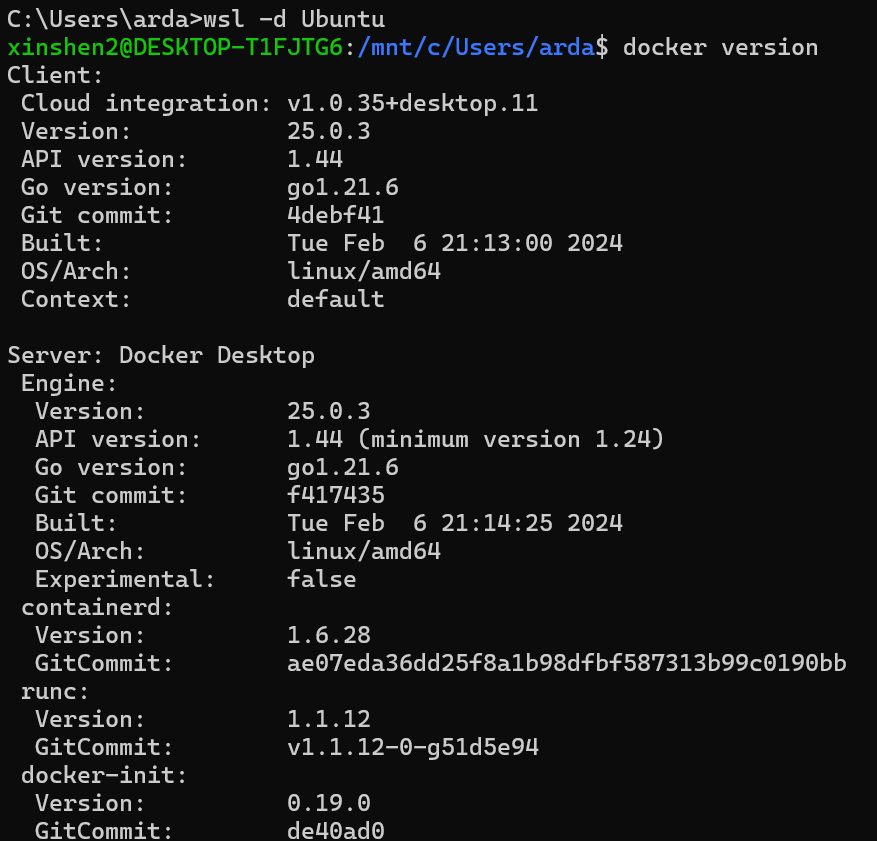
Execute the following commands in PowerShell or Command Prompt to verify that Docker is enabled in WSL2:
wsl -d Ubuntu # Run Ubuntu WSL distribution
docker version # Check if Docker is enabled in WSL
You can see the output similar to the following:
Tip
During the use of Docker in WSL, Docker Desktop needs to be kept open all the time.
IPEX-LLM Docker Containers#
We have several docker images available for running LLMs on Intel GPUs. The following table lists the available images and their uses:
| Image Name | Description | Use Case |
|---|---|---|
| intelanalytics/ipex-llm-cpu:latest | CPU Inference | For development and running LLMs using llama.cpp, Ollama and Python |
| intelanalytics/ipex-llm-xpu:latest | GPU Inference | For development and running LLMs using llama.cpp, Ollama and Python |
| intelanalytics/ipex-llm-serving-cpu:latest | CPU Serving | For serving multiple users/requests through REST APIs using vLLM/FastChat |
| intelanalytics/ipex-llm-serving-xpu:latest | GPU Serving | For serving multiple users/requests through REST APIs using vLLM/FastChat |
| intelanalytics/ipex-llm-finetune-qlora-cpu-standalone:latest | CPU Finetuning via Docker | For fine-tuning LLMs using QLora/Lora, etc. |
| intelanalytics/ipex-llm-finetune-qlora-cpu-k8s:latest | CPU Finetuning via Kubernetes | For fine-tuning LLMs using QLora/Lora, etc. |
| intelanalytics/ipex-llm-finetune-qlora-xpu:latest | GPU Finetuning | For fine-tuning LLMs using QLora/Lora, etc. |
We have also provided several quickstarts for various usage scenarios:
… to be added soon.
Troubleshooting#
If your machine has both an integrated GPU (iGPU) and a dedicated GPU (dGPU) like ARC, you may encounter the following issue:
Abort was called at 62 line in file:
./shared/source/os_interface/os_interface.h
LIBXSMM_VERSION: main_stable-1.17-3651 (25693763)
LIBXSMM_TARGET: adl [Intel(R) Core(TM) i7-14700K]
Registry and code: 13 MB
Command: python chat.py --model-path /llm/llm-models/chatglm2-6b/
Uptime: 29.349235 s
Aborted
To resolve this problem, you can disable the iGPU in Device Manager on Windows. For details, refer to this guide